Spotify
Getting Started
Create Your App
Visit the Spotify Developer Dashboard
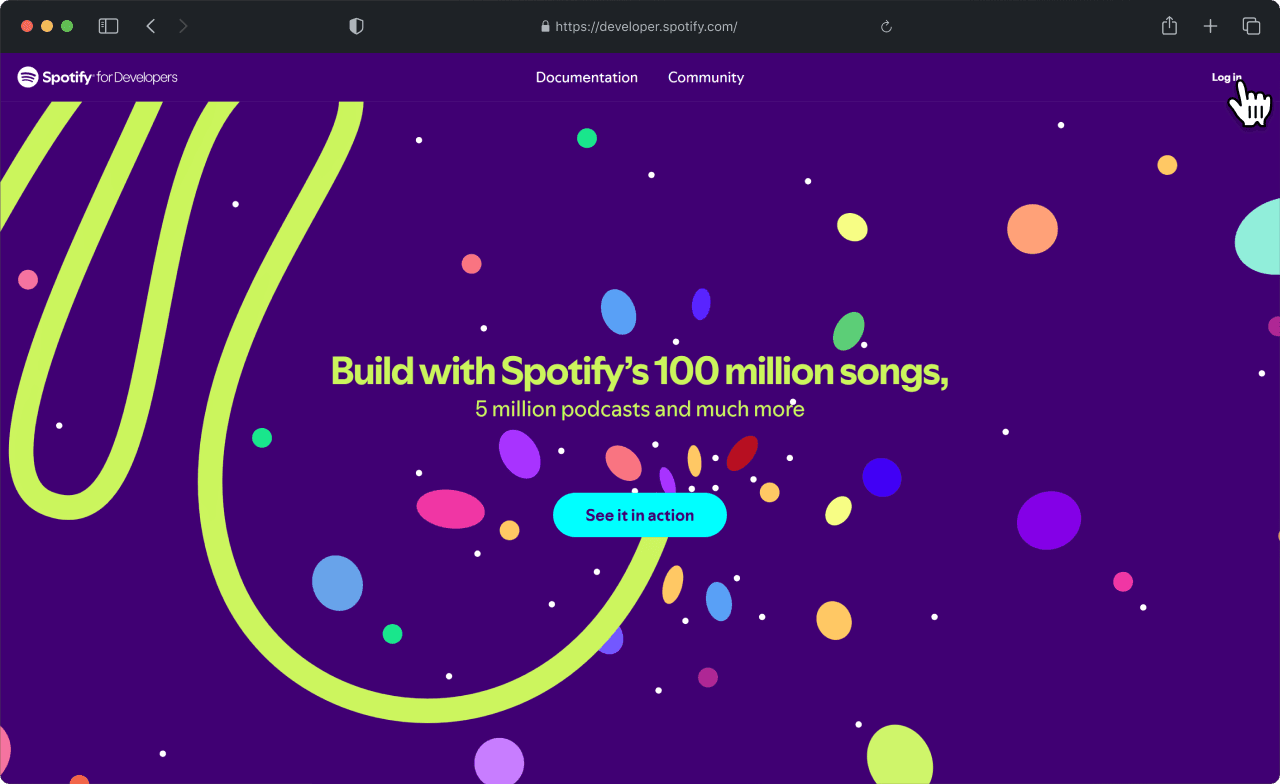
1. Click on Log in in the top right
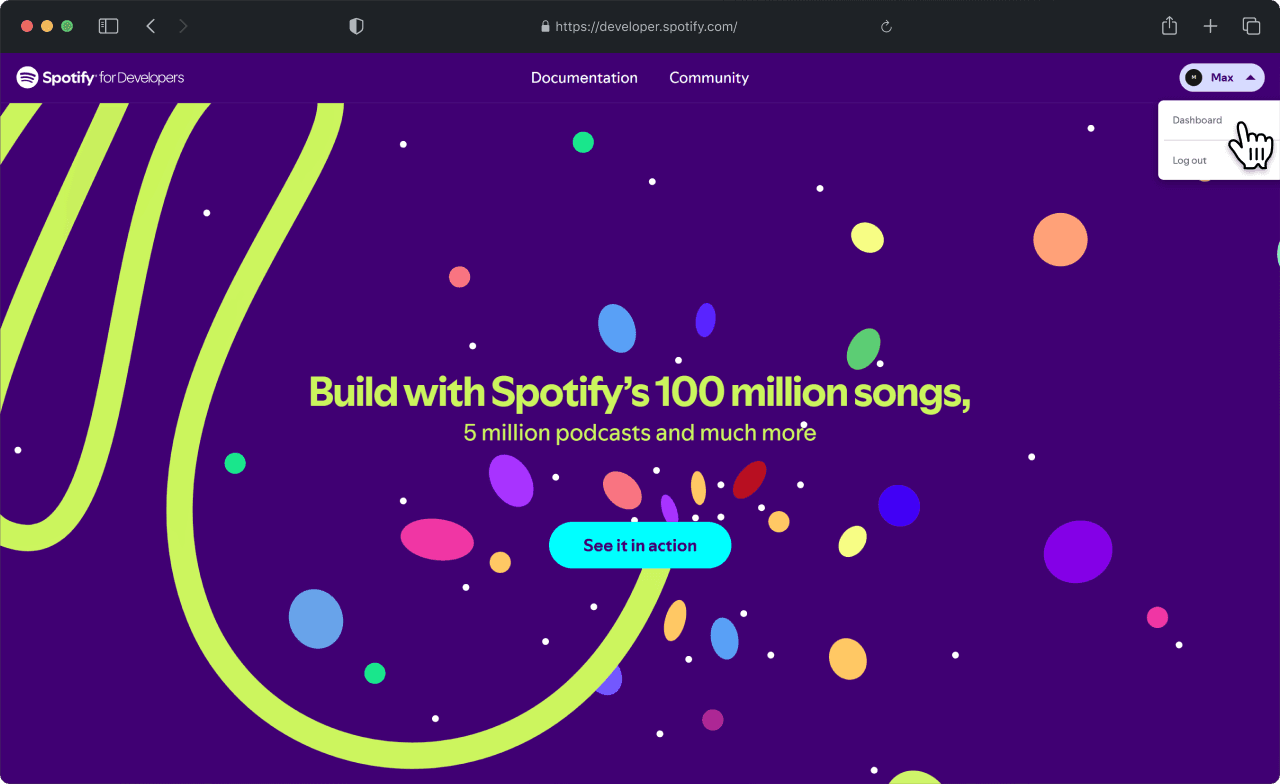
2. Once logged in, click on your name. A dropdown appears. Click on Dashboard.
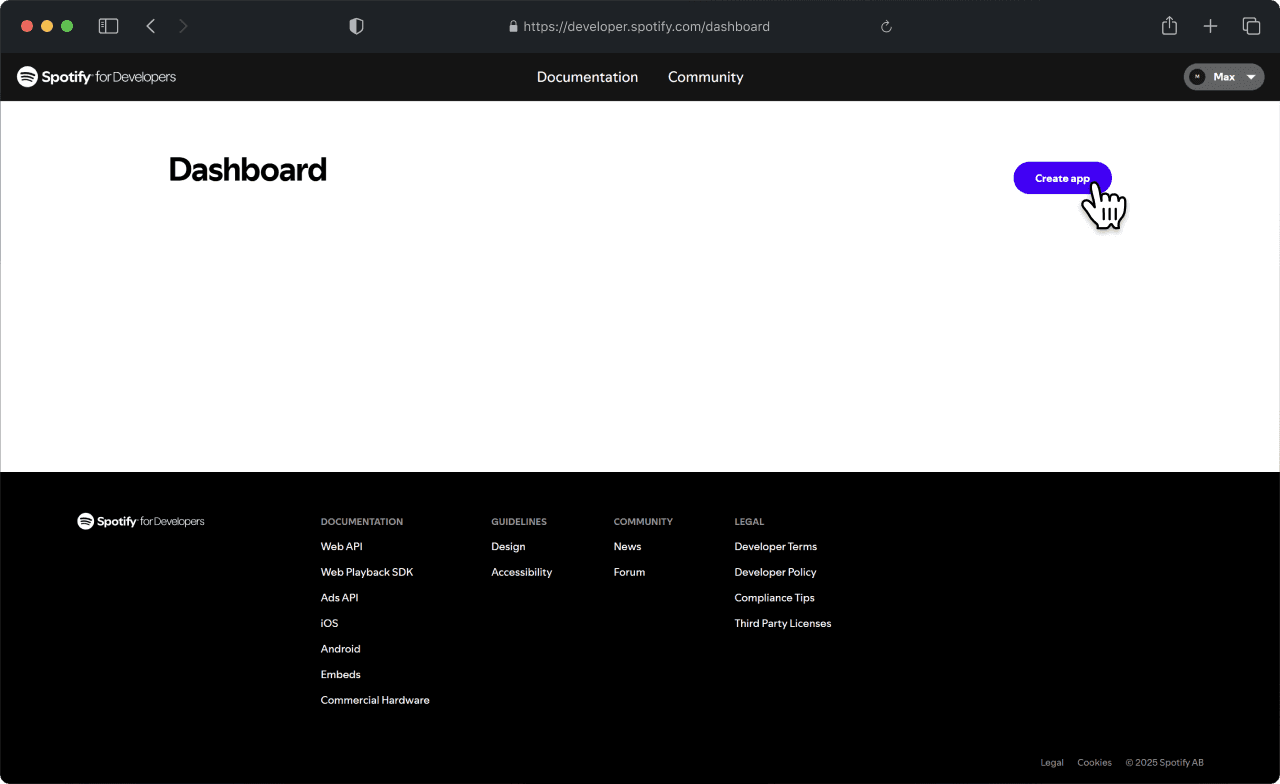
3. Create a new app by clicking on Create app
4. Enter the following information, then click on Save
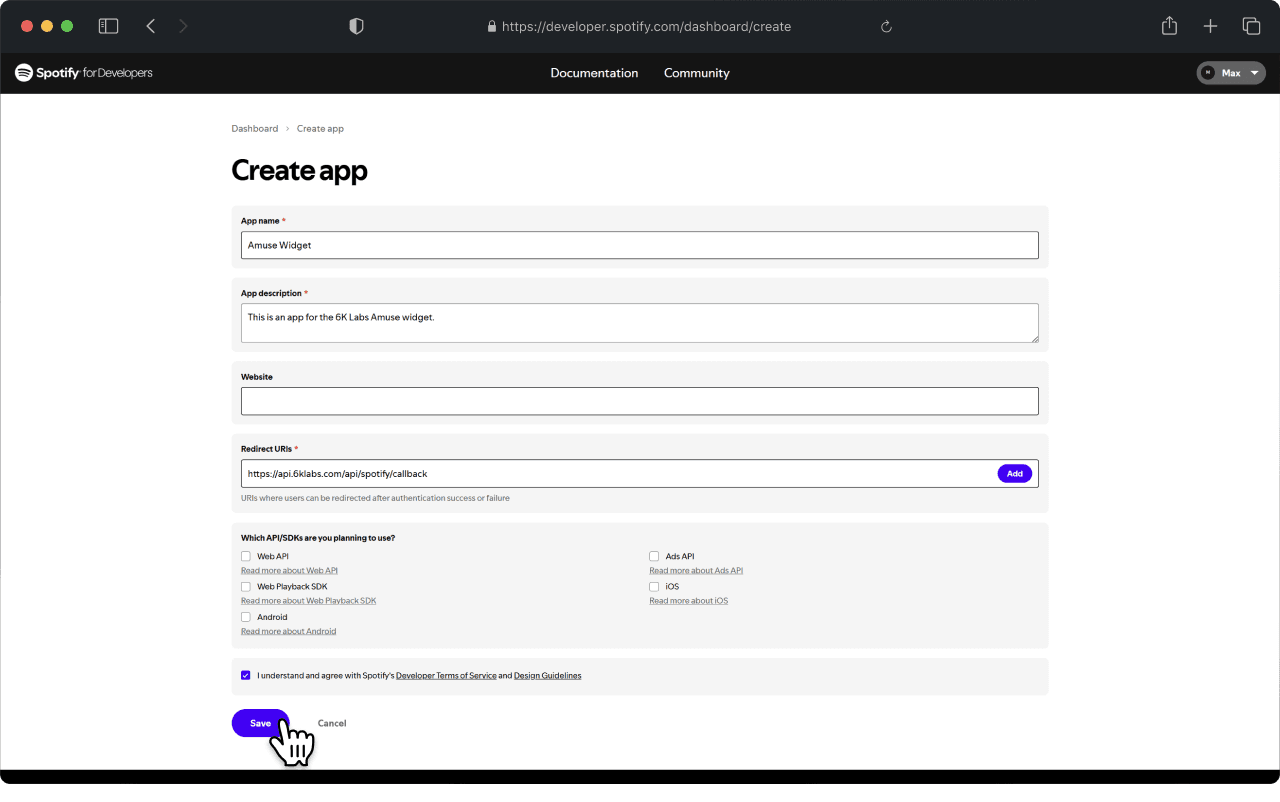
App Name
App description
Redirect URI
Get Your Client ID and Client Secret
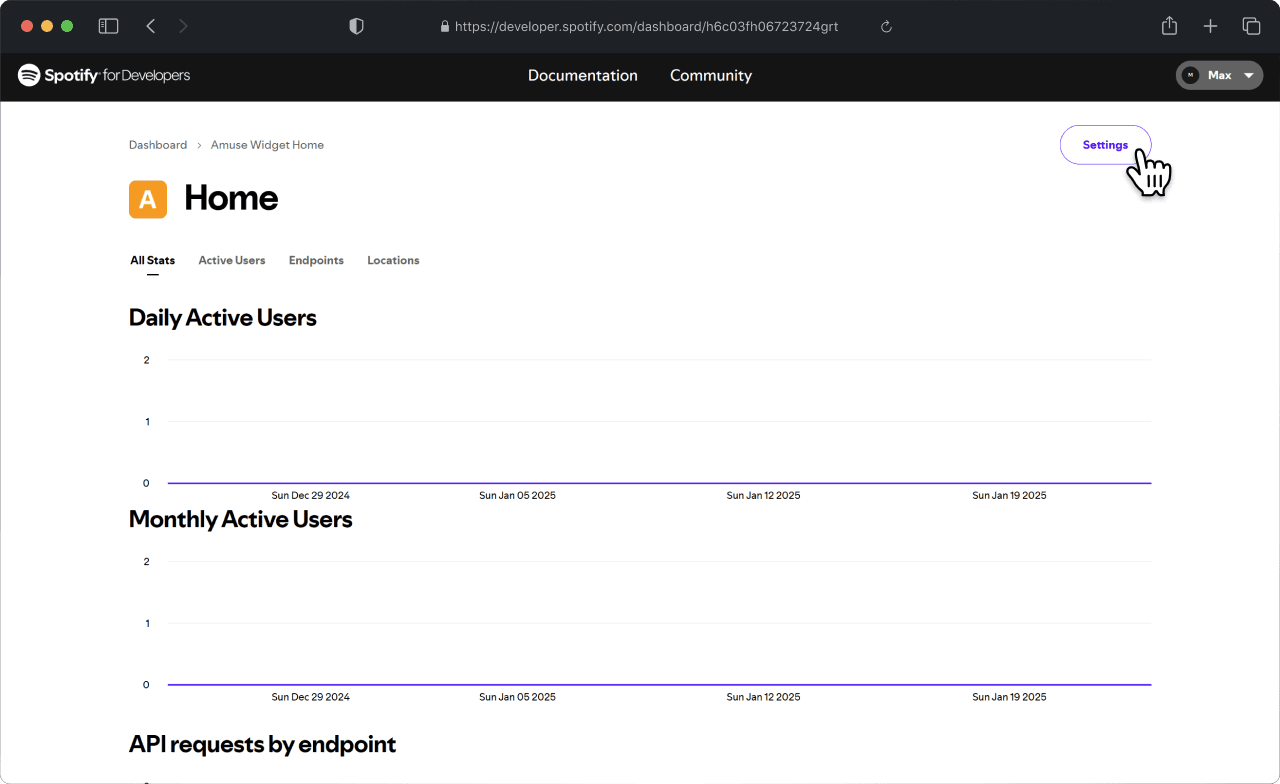
1. Click on Settings
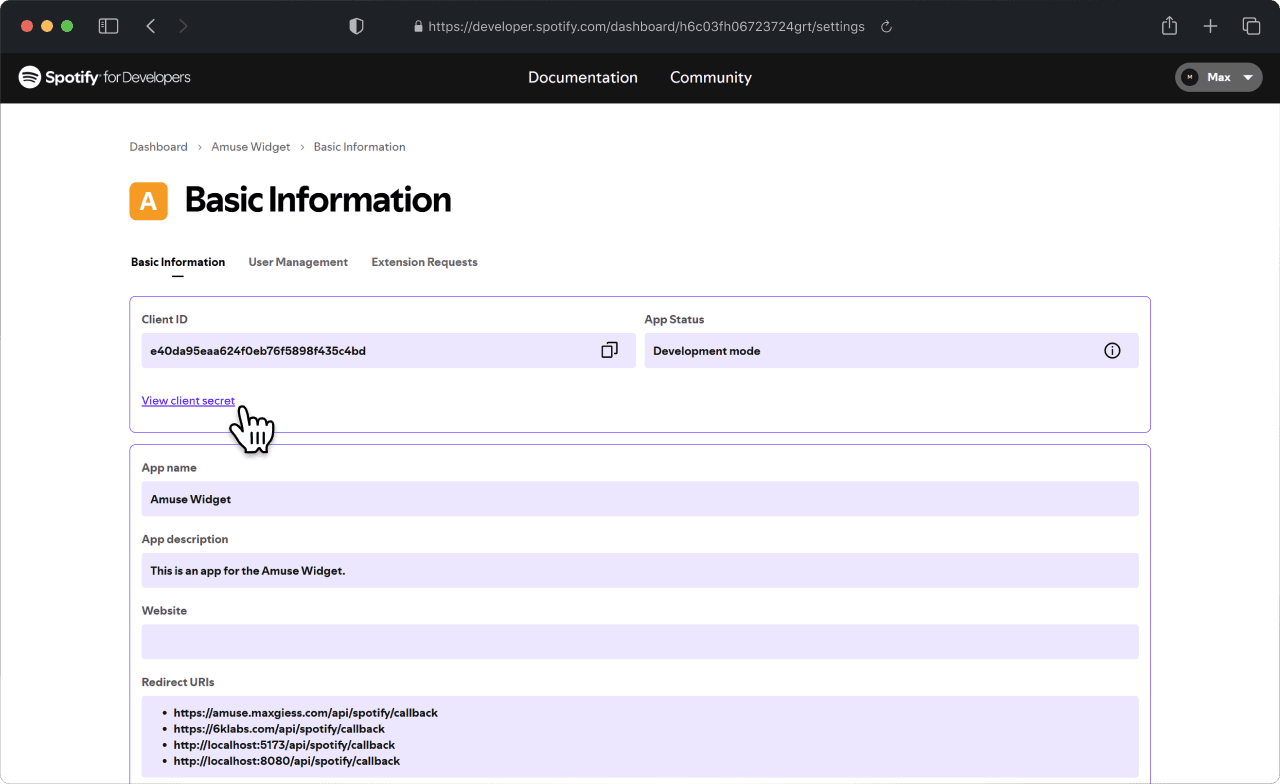
2. Click on View client secret
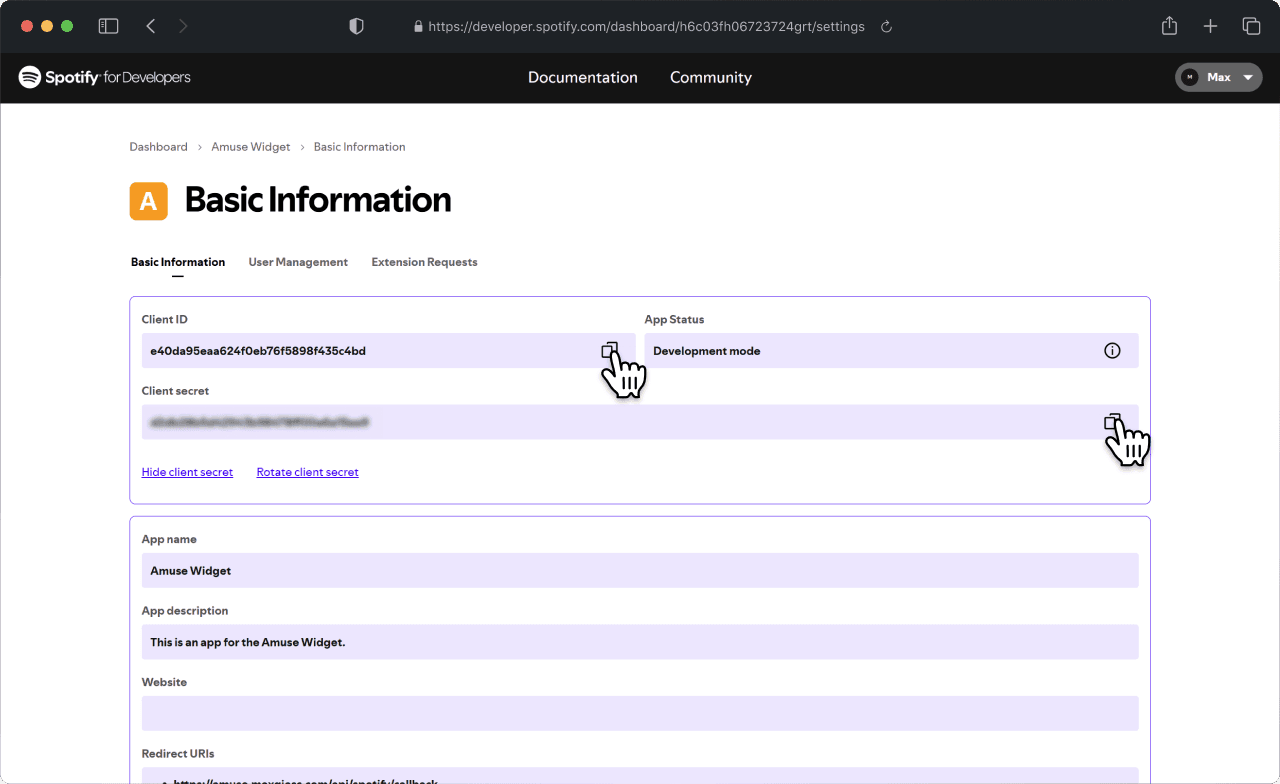
3. Copy the Client ID and Client Secret
Connect Your App to 6K Labs
1. Paste Client ID and Client Secret into the Spotify App form
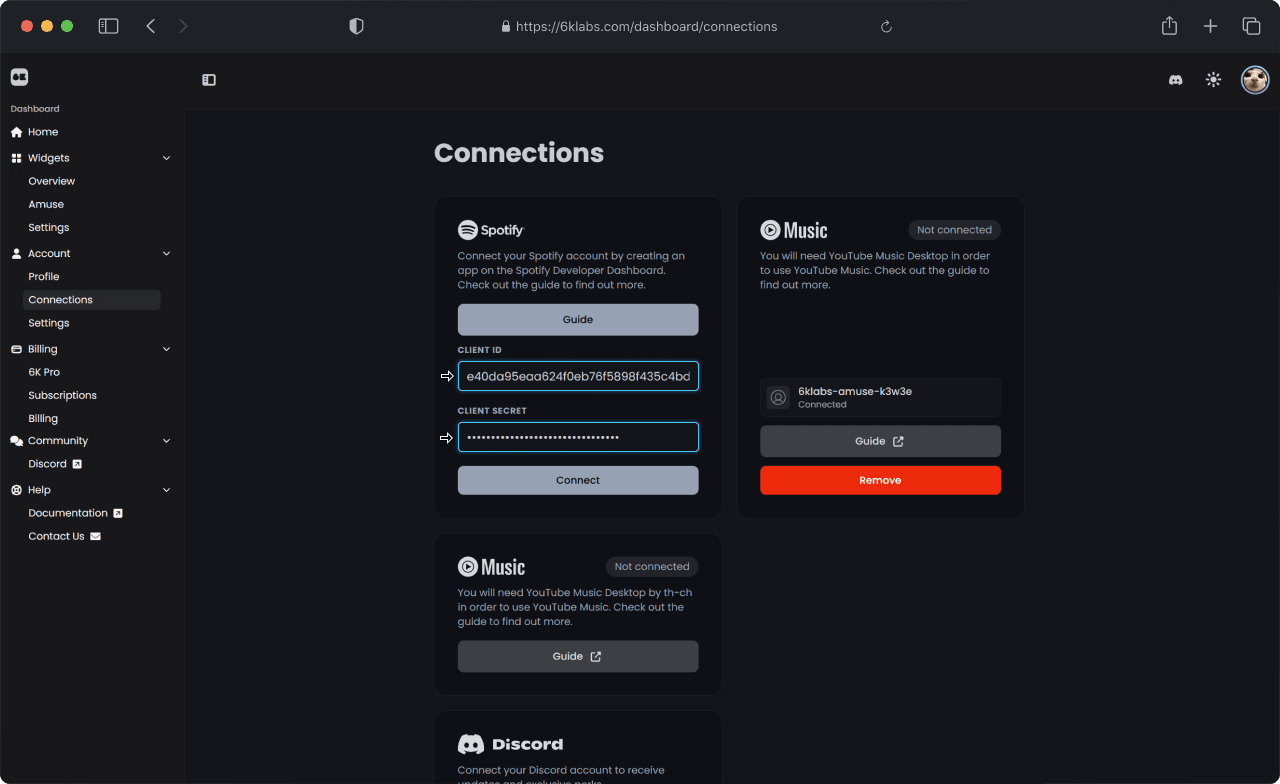
2. Click on Connect and approve the app.
Troubleshooting
INVALID_CLIENT: Invalid client error
In the event that you click on Connect and receive the INVALID_CLIENT: Invalid client error, this could indicate an incorrect Client ID. Please ensure to verify the correctness of your Client ID.
INVALID_SECRET: Invalid client_secret error
In the event that you click on Connect and receive the INVALID_SECRET: Invalid client_secret error, it suggests that your Client Secret may be incorrect. Please ensure to verify the correctness of your Client Secret.
INVALID_CLIENT: Invalid redirect URI error
In the event that you click on Connect and receive the INVALID_CLIENT: Invalid redirect URI error, it implies that the Redirect URL you entered in step 3 may be incorrect. Please ensure to verify the correctness of your Redirect URL.