Pear Desktop
Overview
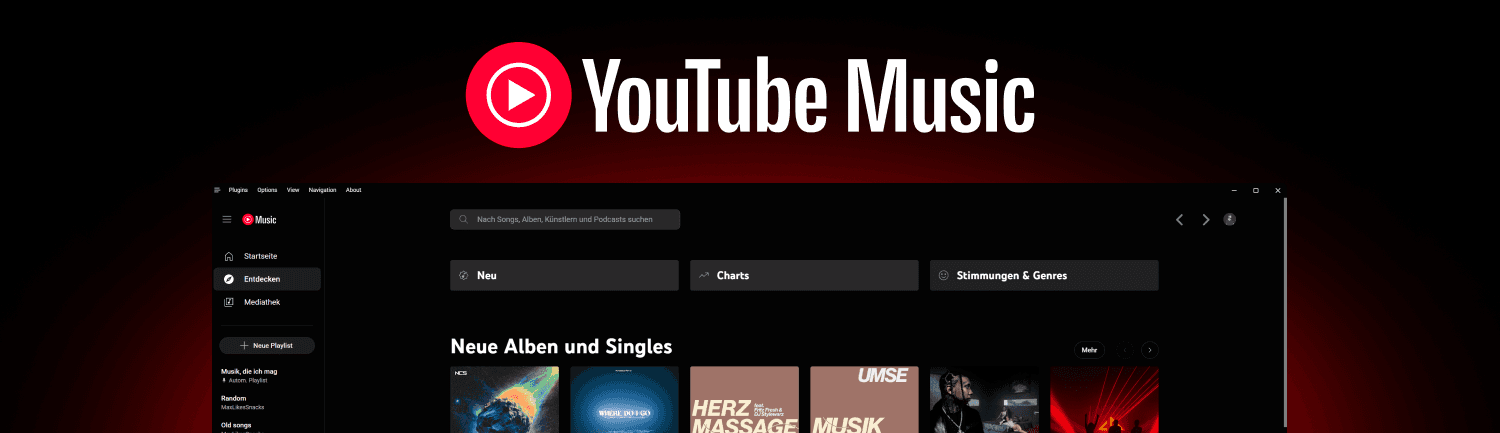
Pear Desktop enhances your listening experience with a variety of features and plugins. Here’s what you can expect:
Key Features:
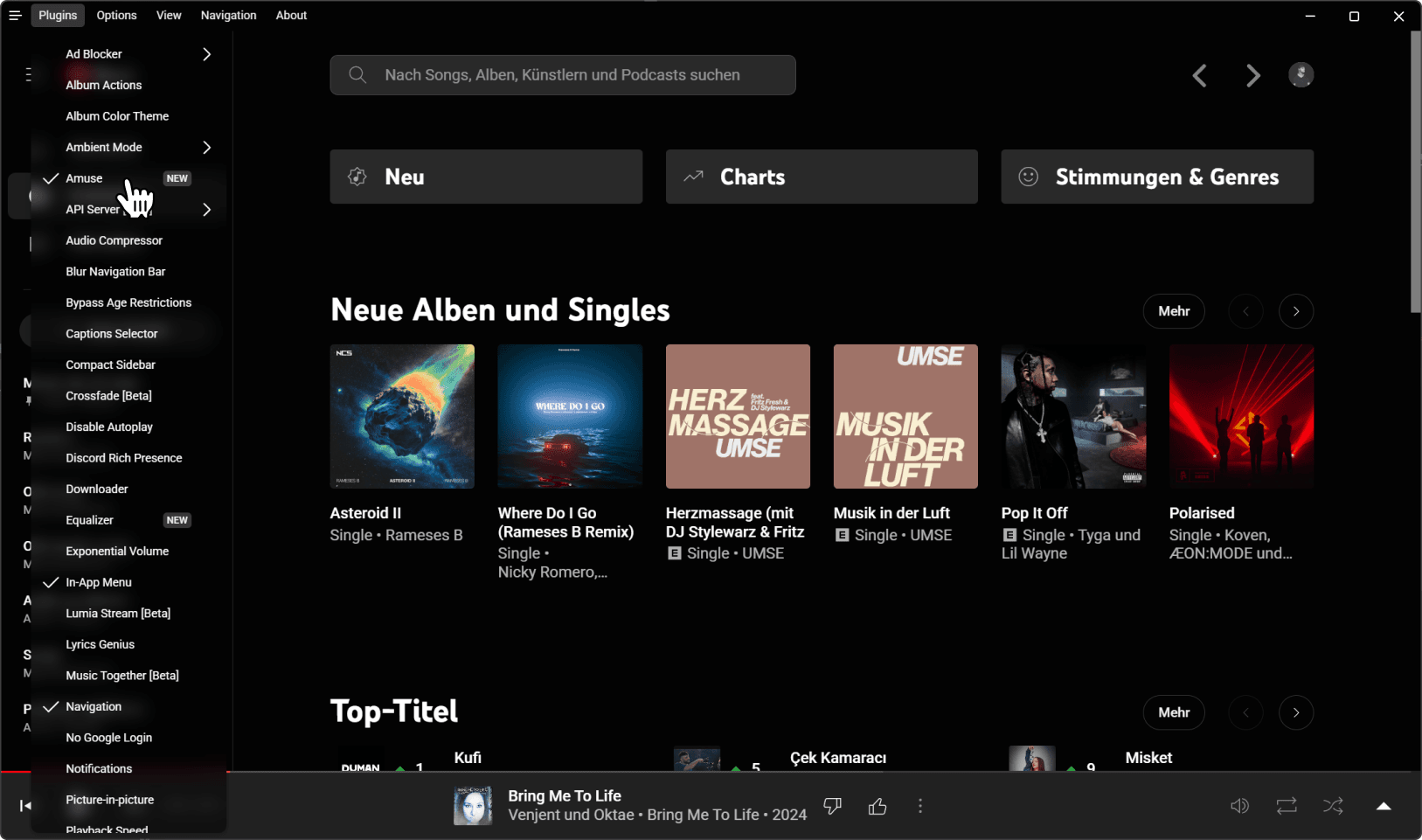
- Amuse: This app has an official plugin for Amuse created by iryis.
- Auto Confirm: Disables the “Continue Watching?” popup for uninterrupted listening.
- Ad Blocker: Blocks ads and tracking out of the box.
Customization:
- Album Color Theme: Applies dynamic themes based on album artwork.
- Ambient Mode: Adds gentle lighting effects to your screen’s background.
- Audio Compressor: Balances audio levels for a smoother listening experience.
Playback Tools:
- Crossfade: Seamlessly transition between songs.
- Equalizer: Adjust audio frequencies to your preference.
- Skip Silences: Automatically skips silent parts in tracks.
- SponsorBlock: Skips non-music sections like intros/outros.
- Downloader: Download MP3s directly from the interface.
Lyrics & Visuals:
- Synced Lyrics: Displays timed lyrics for songs.
- Visualizer: Adds music visualizers for a dynamic experience.
Additional Plugins:
- Discord Rich Presence: Share what you’re listening to with friends.
- Music Together: Share playlists and sync playback with others in real-time.
- Taskbar Media Control: Control playback directly from your Windows taskbar.
- Video Toggle: Switch between video and audio-only modes.
- OBS Integration: Works with OBS plugins like Tuna for streamers.
Whether you’re looking for better audio control, visual enhancements, or seamless playback, this app expands YouTube Music’s functionality to suit your preferences.
Download
Windows
Get it from the latest release .
Installer: YouTube-Music-Web-Setup-X.X.X.exe
Portable: YouTube-Music-X.X.X.zip
Or install from terminal:
# Using Winget
winget install pear-devs.pear-desktop

# Using Scoop
scoop bucket add extras
scoop install extras/pear-desktop
Offline Installation
- Download the appropriate
*.nsis.7zfile for your architecture:
- x64 for 64-bit Windows
- ia32 for 32-bit Windows
- arm64 for ARM64 Windows
- Download the installer (
*-Setup.exe) - Place both files in the same directory
- Run the installer
macOS
Get it from the latest release .
You should download the YouTube-Music-X.X.X.dmg or YouTube-Music-X.X.X-arm64.dmg file.
Or install from terminal:
# Using Homebrew
brew install pear-devs/pear/pear-desktop
Linux
Get it from the latest release .
Choose the appropriate file based on your distribution and system architecture (e.g., amd64 for x86_64, arm64 for ARM64 devices).
Or install from terminal:
# Using your AUR helper (Arch Linux)
yay -S pear-desktop
If you get the error “is damaged and can’t be opened” when launching the app manually, run:
/usr/bin/xattr -cr /Applications/YouTube\ Music.appAmuse Plugin
The plugin is activated by default, so you don’t need to do anything else. If it’s not activated for some reason, you can activate it by clicking on Plugins in the top left corner of the app and select Amuse.