YouTube Music Desktop
Overview
Enjoy your music on the desktop without needing an open browser tab. This lightweight app lets you play music in the background with full media key support and convenient controls.
Key Features:
- Media Keys Support:
- Play, Pause, Stop, Previous, and Next track controls.
- Double-press the global play/pause button to show/hide the window.
- Background Playback:
- Minimize the app to the taskbar and keep the music playing.
- Desktop Notifications:
- Get notified when the track changes.
- Taskbar Media Controls (Windows):
- Control playback directly from the taskbar.
- Lyrics:
- View lyrics for your favorite songs.
Download
Windows
Get it from the latest release .
You should download the YouTube.Music.Desktop.App-X.X.X.Setup.exe file.
Or install from terminal:
# Using Winget
winget install "YouTube Music Desktop App"
# or
winget install Ytmdesktop.Ytmdesktop

# Using Scoop (Community Maintained)
scoop bucket add extras
scoop install ytmdesktop
macOS
Get it from the latest release .
You should download the YouTube.Music.Desktop.App-darwin-x64-X.X.X.zip file.
Or install from terminal:
# Using Homebrew (Community Maintained)
brew install --cask ytmdesktop-youtube-music
Linux
Get it from the latest release .
Choose the appropriate file based on your distribution and system architecture (e.g., amd64 for x86_64, arm64 for ARM64 devices).
Or install from terminal:
# Using your AUR helper of choice (Arch Linux)
yay -S ytmdesktop
Getting Started
Turn on the companion authorization
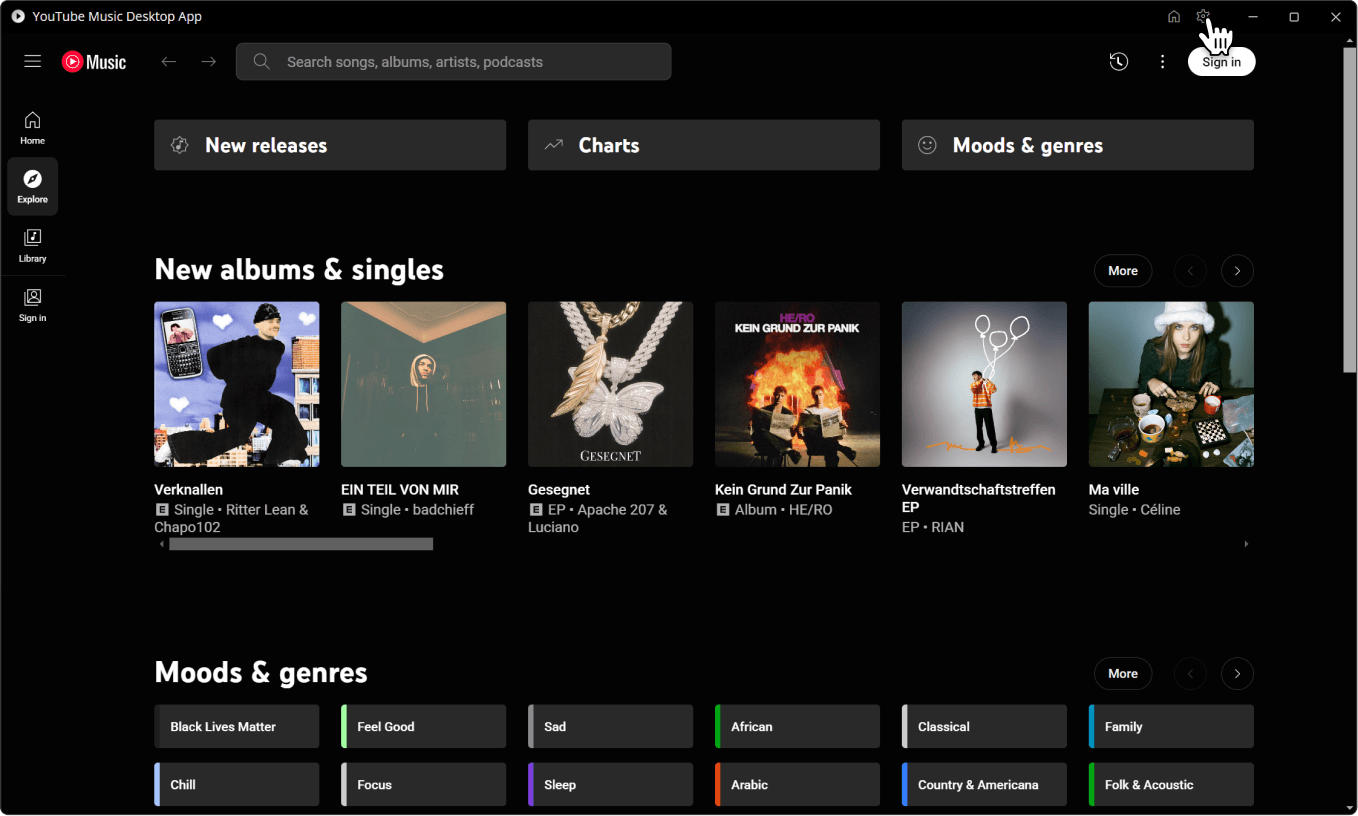
1. Open the app and click on the gear in the top right corner.
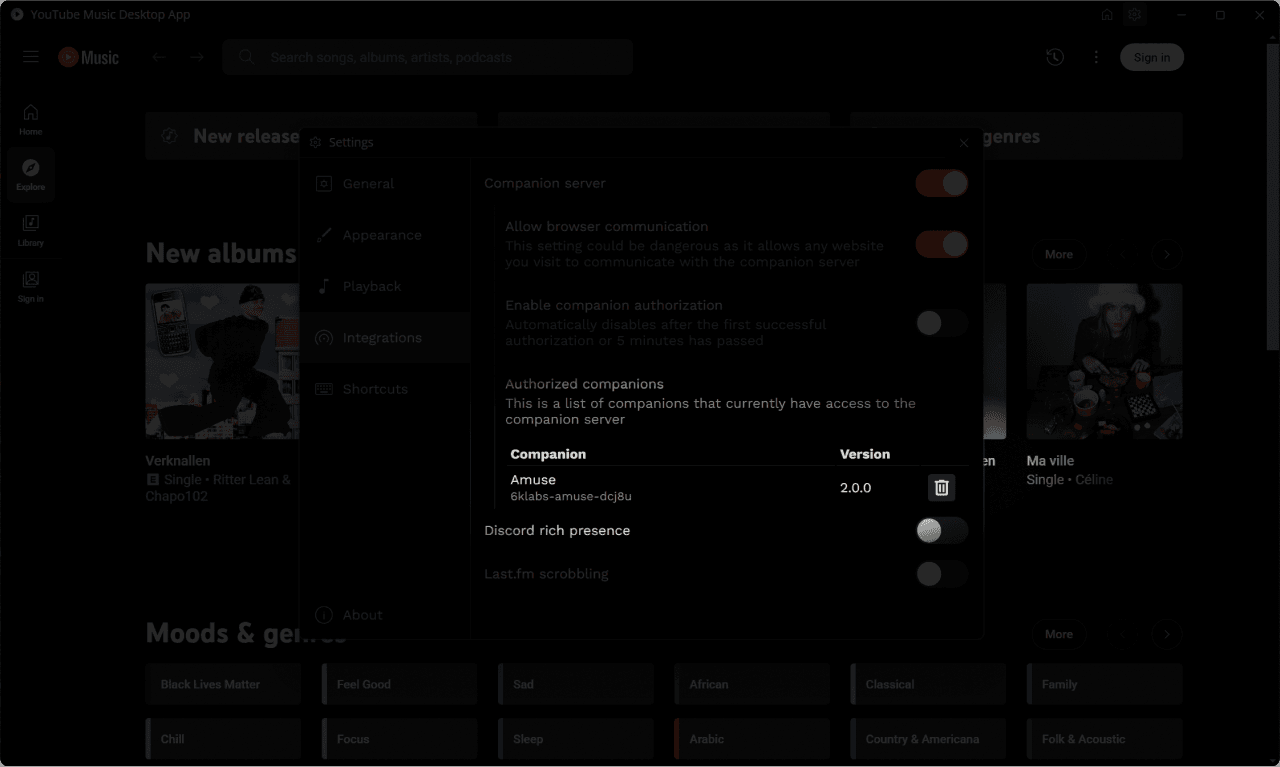
2. Click on Integrations.
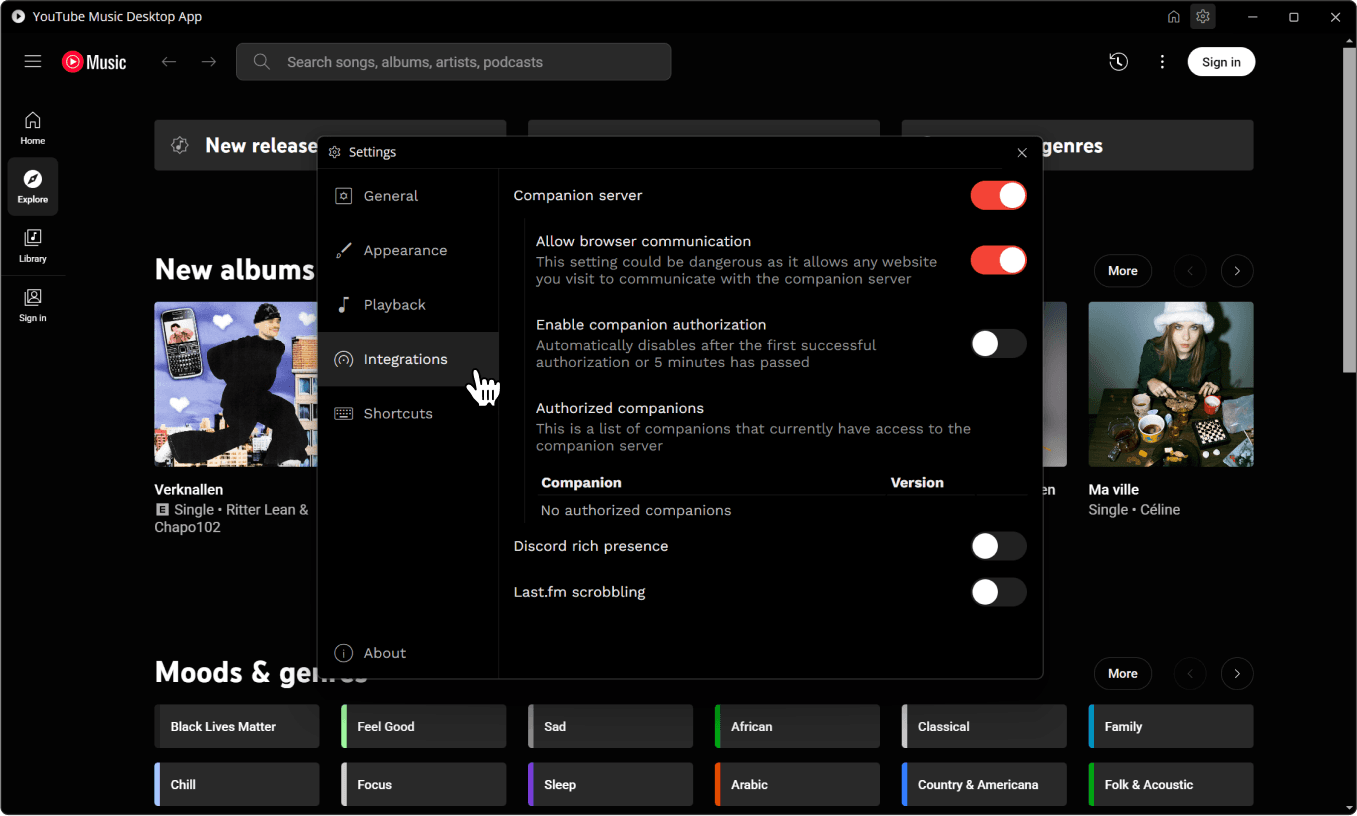
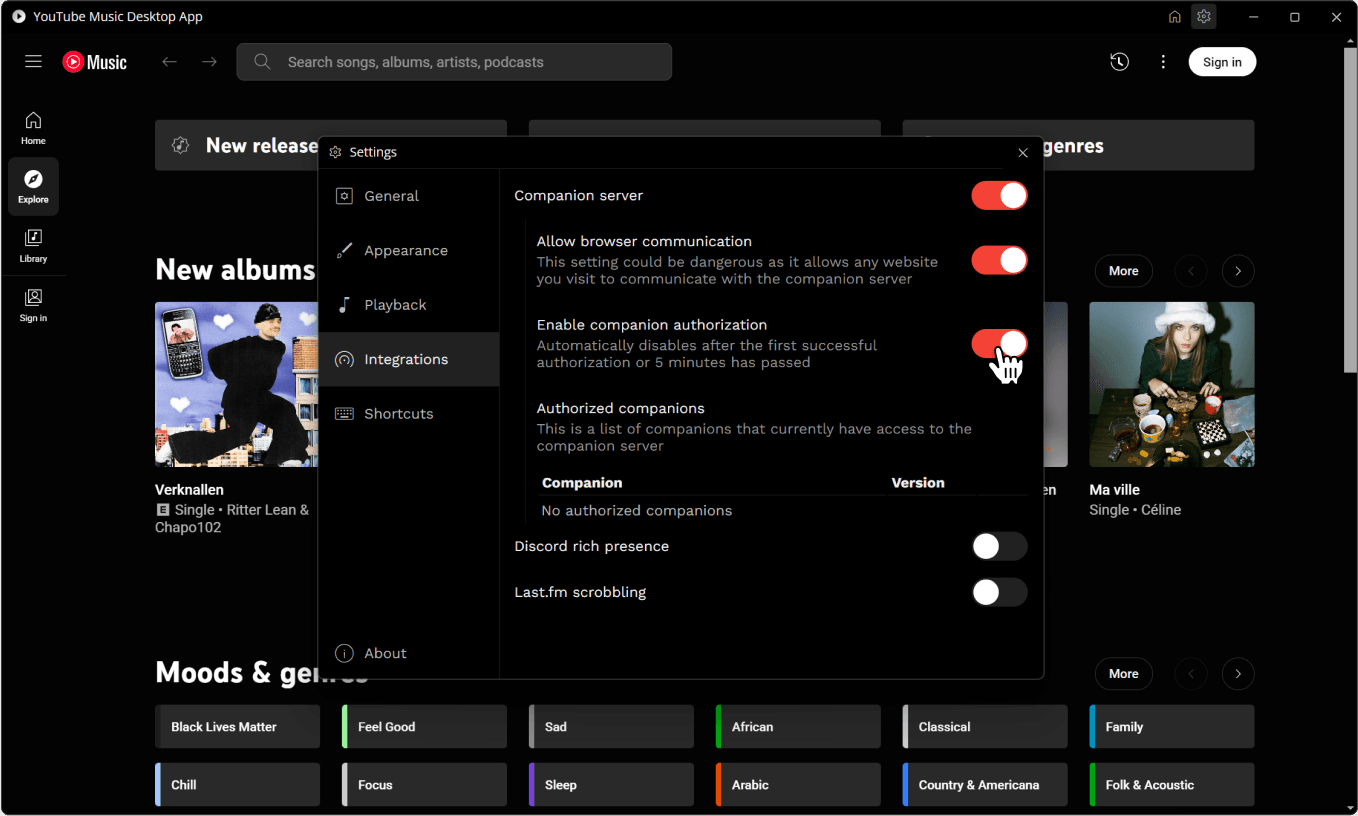
3. Enable companion authorization.
Authorize Amuse
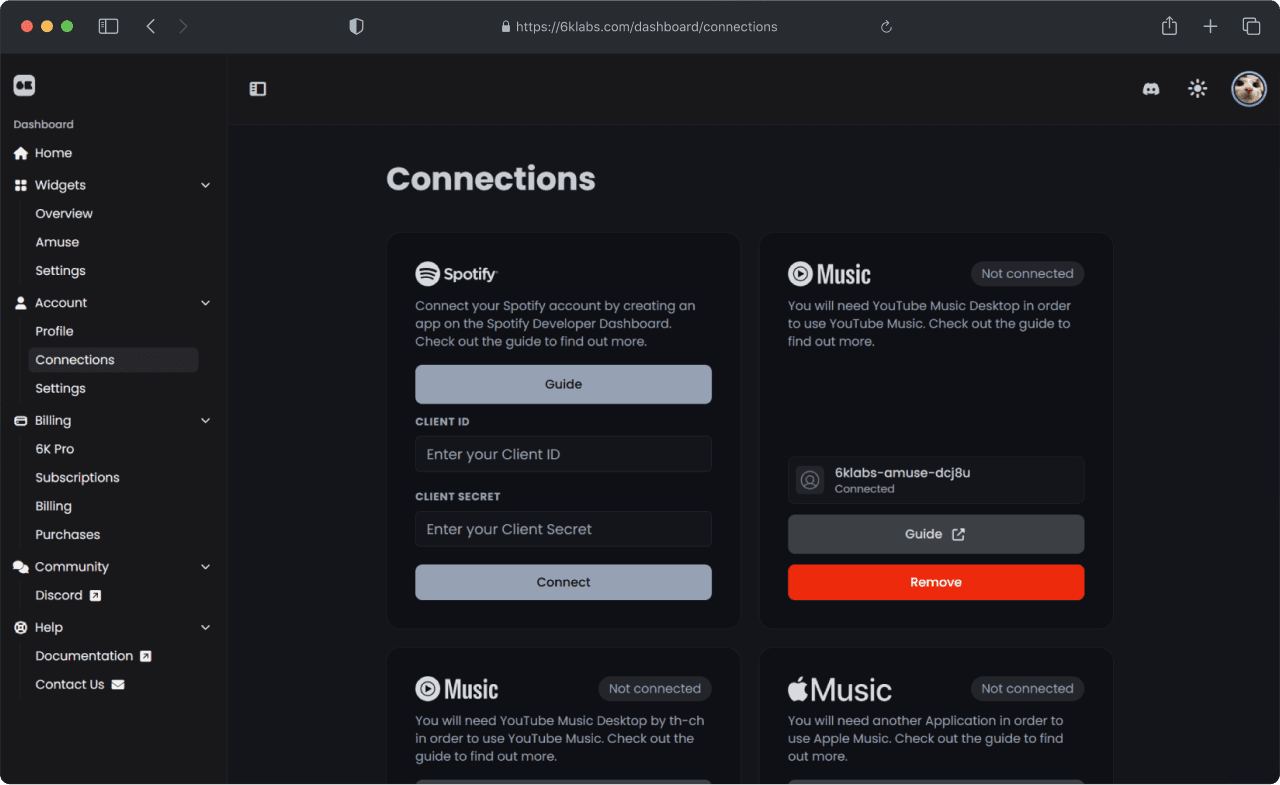
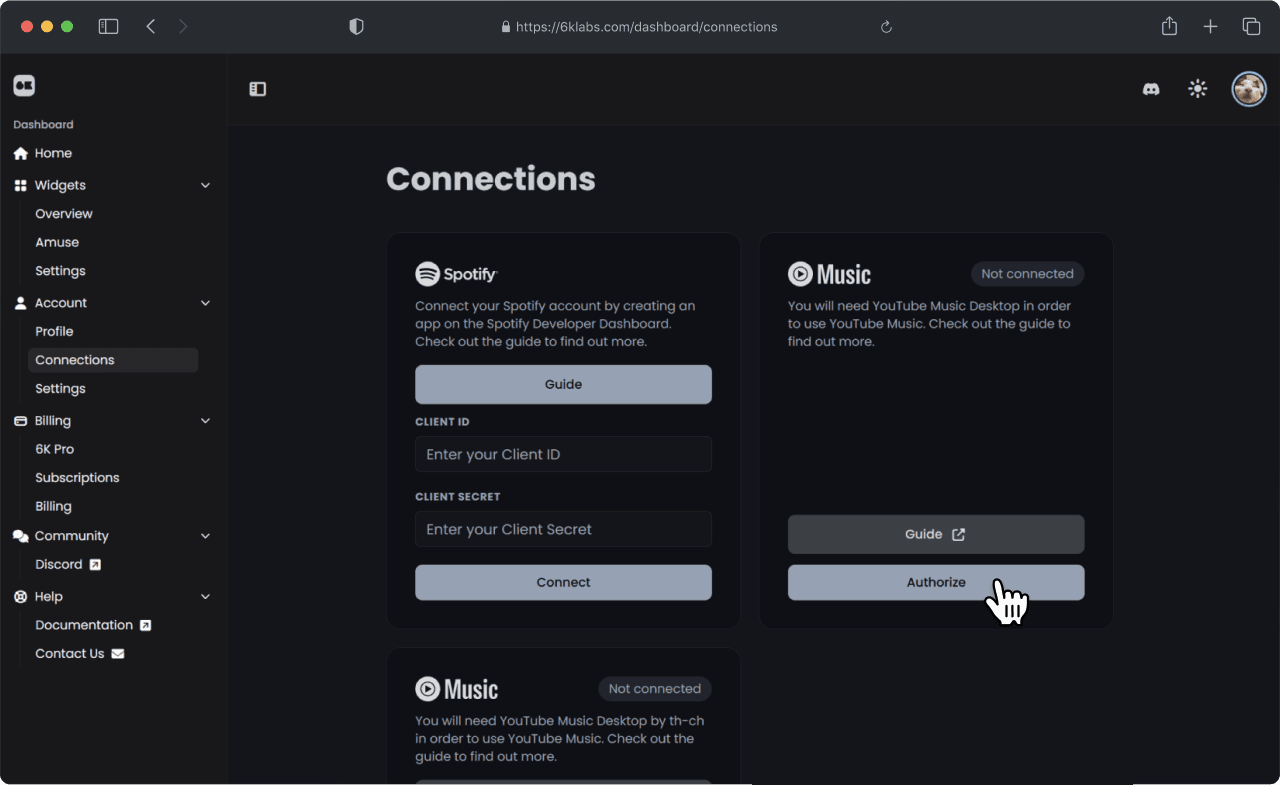
1. Go to Connections and click on "Authorize".
2. A popup will appear with a verification code.
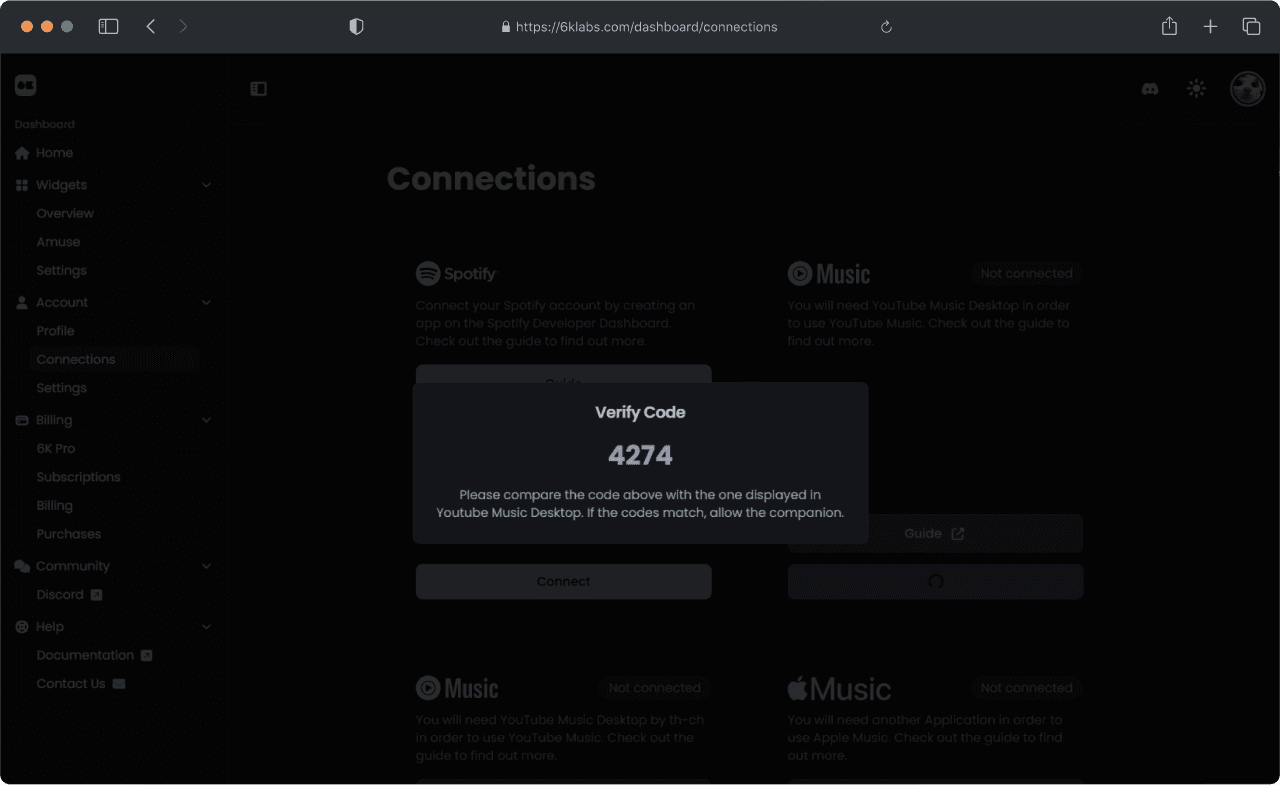
3. Switch back to the app, compare the codes and click on Allow.
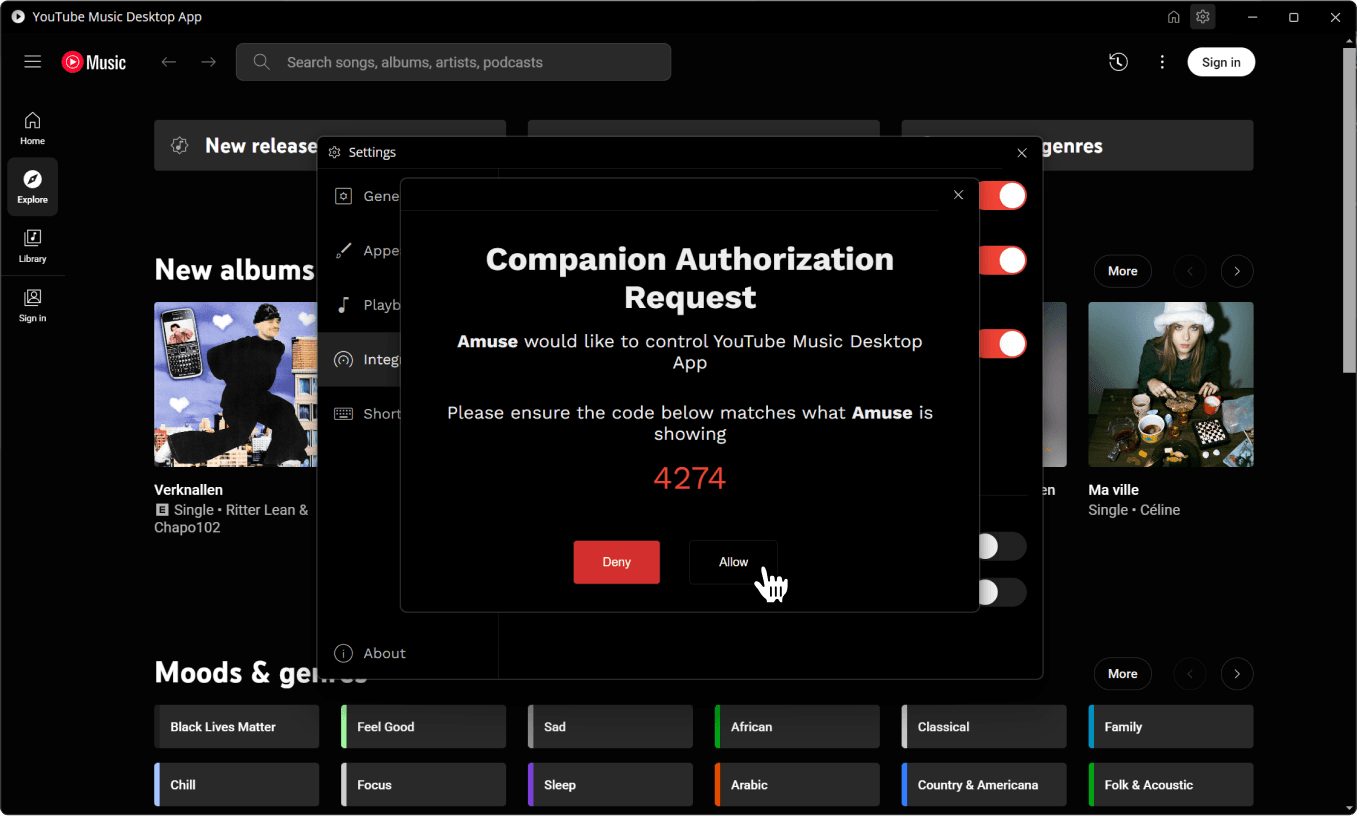
4. If everything went well, you should see Amuse listed in the authorized companions.